When a CypherCard or SentryCard is issued for the first time, the user must enrol their fingerprint directly into the card’s secure element.
- Each card supports the enrolment of up to two fingerprints on the biometric sensor.
- Once fingerprints are successfully enrolled, the card can be used with our certified card readers to register the card’s unique ID/number against the user’s Azure login account on any of your HP Printers using HP Authentication Manager.
Enrolment is completed exclusively by a mobile phone application. To start the process, hold your new card against the back of your phone and follow the instructions within the app.
To Enrol your Finger print , you will need the Following Mobile Phone Applications, Search for SentryCard Enroll
Apple Store
https://apps.apple.com/au/app/sentrycard-enroll/id6736632425

Android Play Store
https://play.google.com/store/apps/details?id=com.sentrycard.sentry.enrollment&pcampaignid=web_share
Please note, We have 2 types of Cyphercards / SentryCards.
1. Production one time fingerprint use, This means once a set of finger prints has been registered onto the card, it cannot be erased or reset.
2. Visitor / Contractor Cards, This means the customer will receive a Special set of Firmware for the Elatec TWN4 Slim Readers that allows them to Erase any existing Biometric Fingerprints, and can re-issue the card to another user. The customer must own and or have purchased an Elatec TWN4 Slim Reader to perform the Biometric reset.
Important: Before an end user can enroll their Visitor Card fingerprint using the SentryCard Enroll iOS or Android application, the app must first be configured with the customer's unique Enroll Code. This code is supplied by us when the hardware is shipped.
⚠️ Do not attempt to enrol a fingerprint unless you have received and entered the correct Enrol Code, as the enrolment process will not function without it.
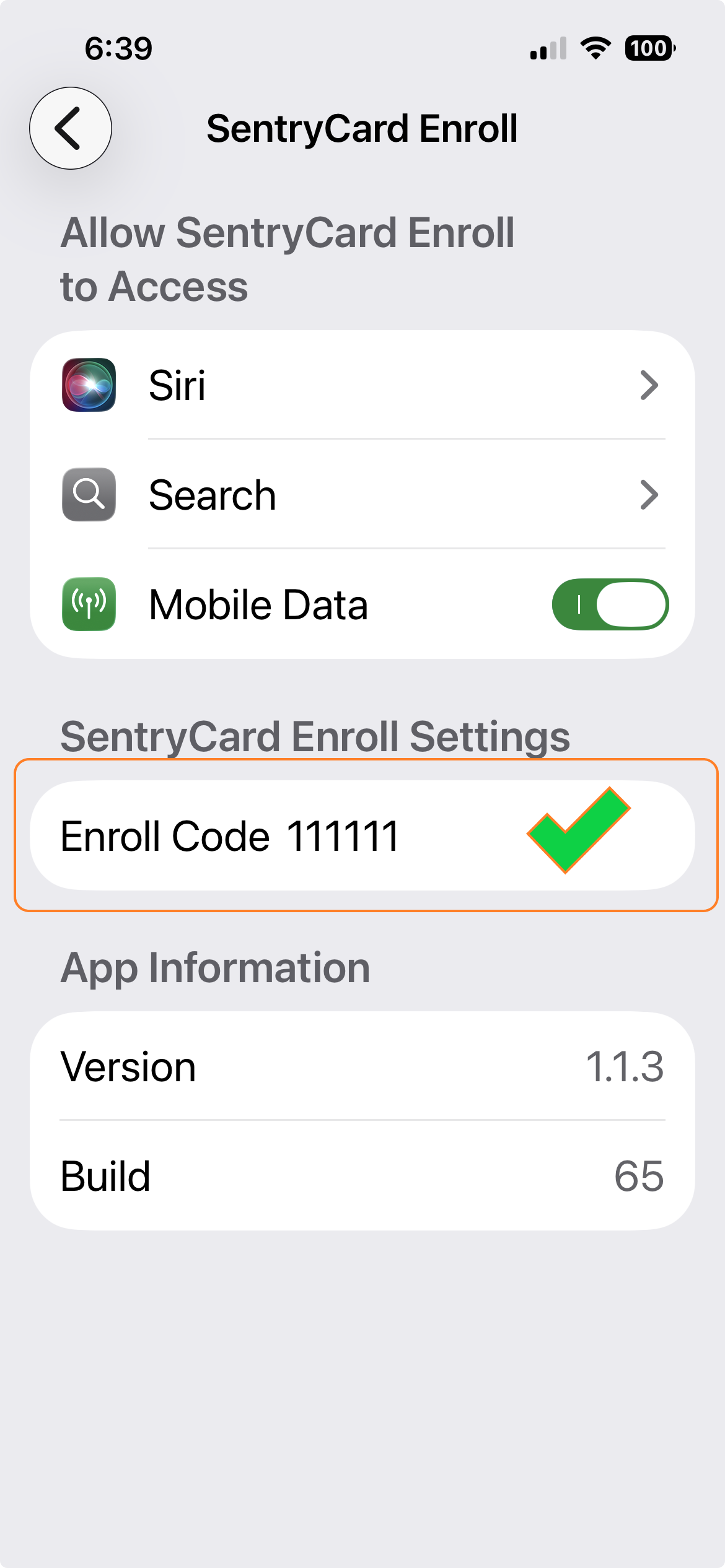
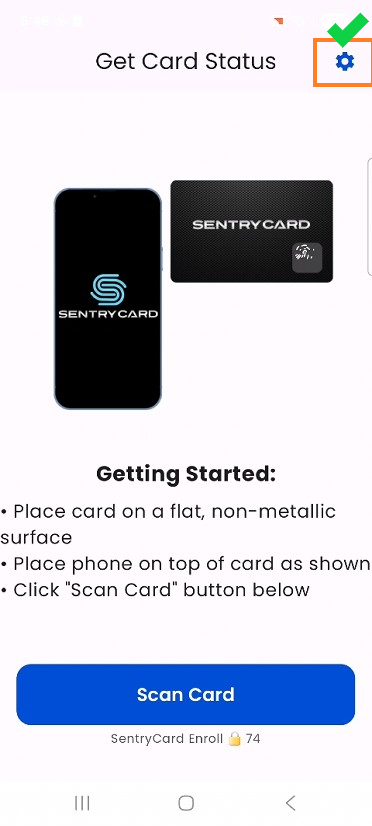
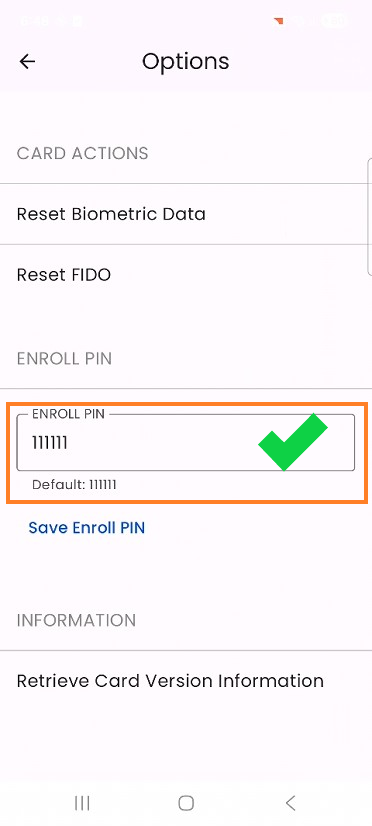
How to Add your Enroll Pin Code?
IOS
You will find the Enroll Code under your Phones Settings > Apps > SentryCard Enroll
Android
You will find the Enroll Code under the applications Gear ICON
Biometric Reset
how do I add my biometric finger print
what program do I use to add my biometric finger print
how can I re issue by Cyphercard or SentryCard
What if I loose my CypherCard or SentryCard
Cypher card
Sentry card
Was this article helpful?
That’s Great!
Thank you for your feedback
Sorry! We couldn't be helpful
Thank you for your feedback
Feedback sent
We appreciate your effort and will try to fix the article