Staples
Currently V4 of our HP Authentication suite of applications supports up to 5 Staple options.
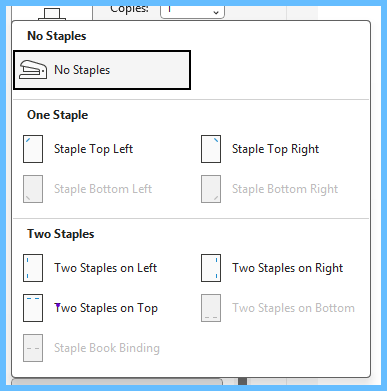
- 1 Staple Top Left
- 1 Staple Top Right
- 2 Staples Left hand side
- 2 Staples Right hand Side
- 2 Staples Top of Page
These Options are available to be used in the following Manner
- When submitting a Print job to any _Direct or _Pull based registered printer which includes Print Anywhere _Pull.
- When submitting print jobs to a Secure Registered Printer, including those sent via Print Anywhere_Secure, staple options must be manually selected at the console. This also applies when printing from OneDrive, SharePoint, MailFlow, and or Teams.

Booklet-Maker
Also known as Saddle-Stitch, which will Fold and place 2 Staples in the middle of the Fold.
Booklet-Maker support
- _Pull
- _Direct
- Print Anywhere_Pull
Paper In the Trays must be loaded with Top Leading Edge so it can Fold a Portrait Documents in Half
Hole Punch
We currently have tested HP 4 Hole punch accessory for _Pull, _Direct, Print Anywhere _Pull
- Dual Holes Left Side
- Dual Holes Right Side
- Dual Holes Top
- Dual Holes Bottom
- Quad Holes Left Side
- Quad Holes Right Side
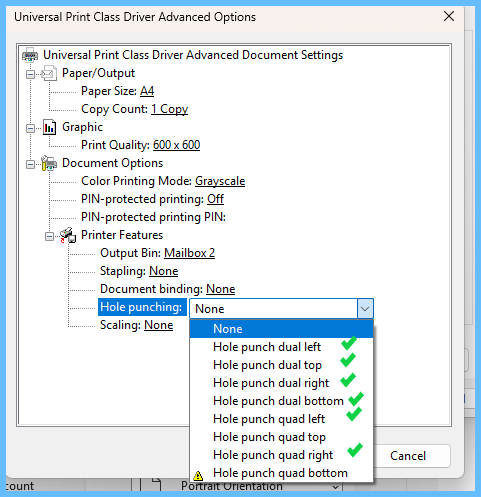
Hole Punch is not supported for _Secure and or any of the 365 Apps like SharePoint, OneDrive, Mailflow and Teams
Finisher Options we Do Not Support!
HP's own Universal Print driver for windows contains additional feature and functions that are not supported via the HP Authentication suite of application include when printing using Microsoft's Universal Print Driver to Azure Universal Print Shares.
These include the following
- Booklet Printing Left & Right Binding etc.
- Water Marks
- Special Pages - Front Cover etc..
- All of the Fold options, Like Fold-C, Fold-up etc..
- Pre-Sets
- Stamps
- Image Overlay
Please remember, if your Print plan requires any of the missing functionality, then your workaround option is to use the HP Supported Windows Driver and Print via the Local Area Network, thus bypassing Microsoft Universal Print services.
Was this article helpful?
That’s Great!
Thank you for your feedback
Sorry! We couldn't be helpful
Thank you for your feedback
Feedback sent
We appreciate your effort and will try to fix the article