TABLE OF CONTENTS
Pre-Upgrade
- Read all Release Notes - if they are not clear then reach out to us.
- Review the “What’s New” article and discuss them with your client prior to scheduling any upgrades. These changes may have a direct impact on their environment, and they may be anticipating specific fixes or new features. Where relevant, consider demonstrating the new features to help determine whether they would provide value to the client and be adopted post-upgrade.
- Review all known issues and Limitation article, and ensure these are discussed with your client prior to scheduling any upgrades. This proactive communication helps set expectations, reduces the likelihood of support calls, and ensures both you and the client are aware of any existing issues and available workarounds.
- Before scheduling any upgrades, it is recommended to establish a Statement of Work (SoW). This helps ensure that all relevant stakeholders are identified and engaged throughout the upgrade process, particularly where Azure IT and/or Network Specialists may be required. Additionally, a group of designated test users should be assigned to support User Acceptance Testing (UAT) and validate the changes effectively.
- In some cases, an upgrade may fail, requiring the printer to be reset to factory settings, followed by firmware reinstallation and re-claiming the device in HP Command Center (HPCC). When planning, consider the time and effort involved—particularly if additional vendor software is installed or if the client has custom configurations, special licences, certificates, or other dependencies in place. Ensure you are fully prepared to manage this scenario.
Confirm that the client has a clearly defined contingency or rollback plan in place to address any potential upgrade failures arising from unforeseen issues, such as network outages or Microsoft service disruptions. This is particularly critical where the printer could remain offline for an extended period, as it helps safeguard business continuity.
If such a plan is not already established—especially in the context of Universal Print—this should be treated as an opportunity to provide guidance and assist the client in developing an appropriate disaster recovery or business continuity strategy.
Upgrade Steps
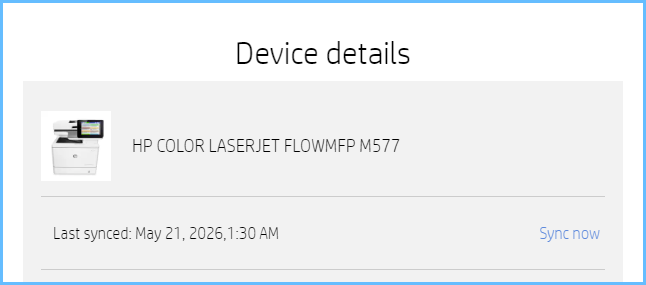
9. If all is ok, then go back to Step 1 for the rest of the printers.
HP Command Centre Tips
You have 2 Option to Perform Upgrades using HP Command Centre Portal.
What do I do If I have technical Issues
- If you are having issues with HP Command centre , Firmware etc.. please reach out directly to your HP Support Team and Log a Support Ticket, they may ask for JDP Logs so be prepared in advance.
- If you are having issues with HP Authentication Suite of app, Please create a support ticket @ https://help.hpauthsuite.com or email to help@hpauthsuite.com and always send us APP Data Logs - How to produce log diagnostic reports
FAQ
How to upgrade HP Authentication Manager
Upgrade best practice
Was this article helpful?
That’s Great!
Thank you for your feedback
Sorry! We couldn't be helpful
Thank you for your feedback
Feedback sent
We appreciate your effort and will try to fix the article