Here is a List of Known issues and or limitations, updated on 16th July 2026, you may also find the following link of some value "What's New"
Important News! - HP will be releasing a Firmware Update 5.10.x by approximately August 2026, which will resolve the current issue with Loss of DNS, and the ability to correctly reach HP and Microsoft Services. Currently we have a set of Specific firmware with this fix, but is limited to a number of Models. Please feel free to reach out to us and provide us with your Printers Model Number and we will endeavour to provide you with the temporary Updated Firmware while you wait for the official release by HP.
TABLE OF CONTENTS
- HP Authentication Manger V4.2
- OneDrive SharePoint & Teams V4.2
- Universal Print V4.2
- OneDrive SharePoint & Teams V4
- Universal Print V4
- HP Authentication Manager V4.1
HP Authentication Manger V4.2
Card/Badge Not being registered
- Under certain circumstances the First time a users attempts to register their Card/Badge and they have successfully signed in and they then attempt a Second sign-in, it may not recognise the card and ask them to repeat the registration process.
Workaround
- Please Wait 30 Seconds and tap Card again and register the Badge / Card for the second time. This will update the users Custom Security Attributes with the Badge / Card ID on the second attempt.
- If you have configured not to use MFA, you may be asked to Validate your Microsoft Sign-in on the Second Attempt as well.
Resolution
Resolved in V4.2.1
QRCODE Missing or failing to Load
- QRCODE Missing or failing to Load - If you decide not to support our HP Secure Authentication Mobile App QRcode Sign-in Flow and did not commission a SignalR Service and you are using Card Readers only to perform your Sign-ins, then you may find when you launch HP Authentication Manager and or any one of the apps before you actually Tap your Card / Badge to sign-in, our HP Authentication Manager app will try to generate a QRcode and will fail without indicating why and this will also occur if your SignalR service is offline and or not configured correctly.
Workaround
- Please Tap your Card/Badge and Sign-in before you choose any of the Applications.
- Do not Launch HP Authentication Manager from the console, it is not required if you are just using Cards/Badges.
- Adjust the Printers Default Sign-in Page (Kiosk) and ensure users must Tap their Card/Badge before they can launch any of the applications like OneDrive, Universal Print, etc..
- If you have configured to use QRcodes to Sign-in then you will need to resolve your SignalR service Beit offline, not configured correctly and or the Azure Secret has expired. How do I update my App Registration Secret
Resolution
Resolved in V4.2.1 - You should see New Error Codes where applicable
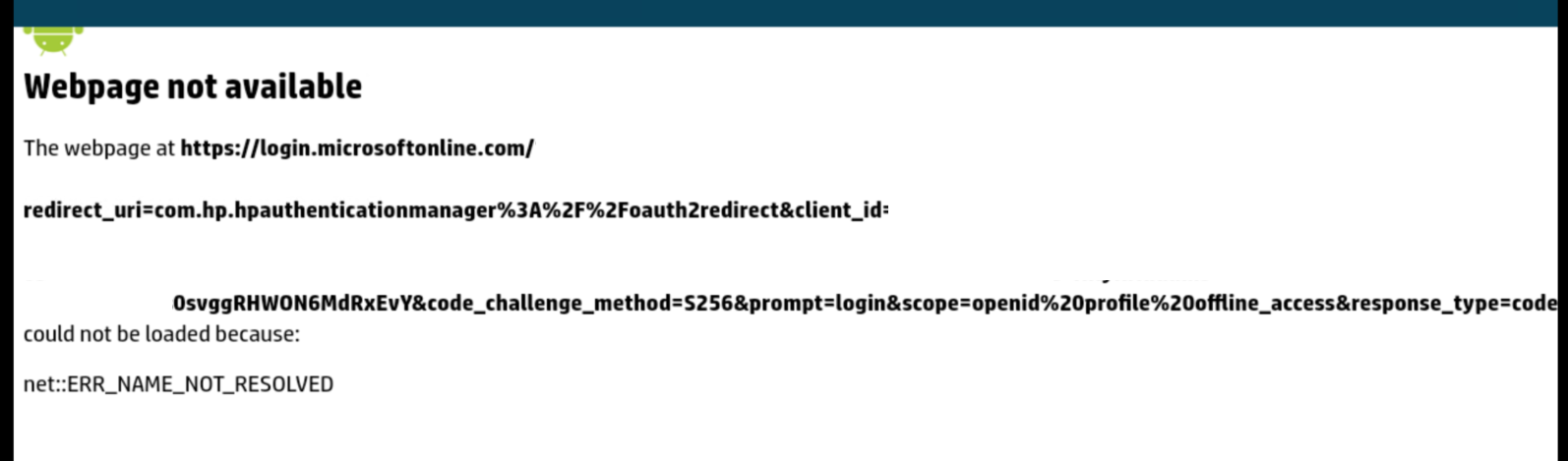
Web Page Not Available
The cause of this issue is related to the Printer Firmware and the loss of DNS, the inability to resolve access to https://login.microsoft.com and all other subsequent URL endpoints. This is a Complete failure of the Printers ability to handle DNS queries and affects the HP Authentication suite of apps . ERR NAME NOT RESOLVED
Workaround
- Please Reboot Printer
Resolution
- Resolved in Future Firmware Release V5.10.x, due by Mid August 2026
OneDrive SharePoint & Teams V4.2
When selecting an alternative paper type other than the default (Plain), the app crashes
Workaround
- Please Select the Correct Paper Size and select the correct tray containing the Paper Type
Resolution
- Resolved in V4.2.1
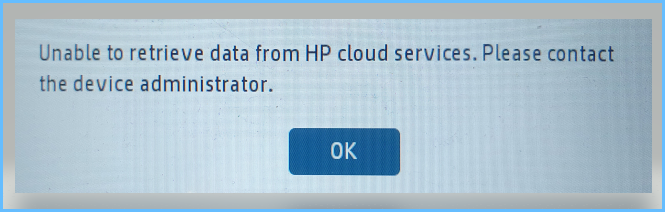
Unable to retrieve data from HP cloud services Message
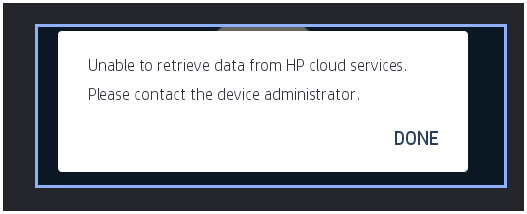
- On Occasions you may receive the following message when launching OneDrive, SharePoint or Teams. This normally occurs on first time installation and first time Use. Currently we still rely on a Very small HP Service that on occasion's does not reach HP Backend Services in a timely manner and therefore you will see this error message. Unable to retrieve data from HP cloud services Please contact device administrator
Workaround
- Retry the application, No Need to Reboot, there is a delay in reaching HP's Backend Services, however if a retry fails then please check the printers Time and Date, if the time is out by more than 1 Hour then this will result in the following issue and you will need to fix the Time/Date and Reboot
Resolution
- Resolved in Future Firmware Release V5.10.x, due by Mid August 2026
Printing of Password protected PDF fails
- Printing of Password protected PDF Documents in OneDrive, SharePoint, Teams and or Mailflow fails, which also includes any Microsoft Purview / Compliance labels like Internal Use Only, Confidential etc..
Resolution
- Resolved in V4.2.1 - Password Protected PDF Only
Purview / Compliance Labels - Still Under Review
Limitation - OneDrive
- Unable to display Users Shared Links / Shared Folders / Files for Print and or Scan
Workaround
- Use SharePoint for Corporate Shared Files and Folders
Resolution
Scheduled for next Release.
Limitation - SharePoint
- support a max of 4 Custom Index Fields
- Mandatory SharePoint Indexes are not made obvious to a user
Resolution
Scheduled for next Release.
Universal Print V4.2
When selecting an alternative paper type other than the default (Plain), the app crashes
Workaround
- Please Select the Correct Paper Size and select the correct tray containing the Paper Type
Resolution
Resolved in Release V4.2.1
Unable to maintain Paper Size when using Secure Print
- We have lost the ability to maintain Paper Size when submitting print jobs to Secure Print, if each job uses different paper sizes then the job will no longer maintain the correct size. This does not affect any Pull Print services.
Workaround
- Manually Select the correct paper Size prior to Printing
Resolution
This has been resolved by Microsoft as of 9th June 2026, you should now see the correct Paper Size appearing in the Universal Print Console application
OneDrive SharePoint & Teams V4
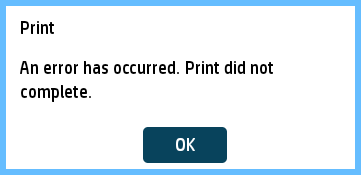
Fail to Print TIFF and MTIFF Images
- Fail to Print TIFF and MTIFF Images from OneDrive, SharePoint & Teams - An Error has occurred. Print did not complete
Resolution
Resolved in Release V4,2
Please note: Large MTIFF images may not print due to Printers Memory size, so you may receive an Size limit error message also we do not support Preview of TIFF/MTIFF Formats.
Unable to Print certain DOCX files
- Print Fails due to Microsoft Graph Conversion from DOCX to PDF for Print, there is a hard set timeout limit of approximately 45 Seconds for our app to Send your DOCX file to Microsoft for Conversion services to complete it's task, and this is regardless of File Size and or Pages, If your documents are complex with lots of Embedded Images and hundreds of pages, it can take longer than expected to convert to PDF format for us to print when using OneDrive, SharePoint and or Teams
Workaround
- Use MS Office and Print to Universal Print _Direct, _Secure or _Pull (Print_Anywhere)
Resolution
Under Review
Printing of Password protected PDF fails
- Printing of Password protected PDF Documents in OneDrive, SharePoint and or Mailflow fails, which also includes any Microsoft Purview / Compliance labels like Internal Use Only, Confidential etc..
Resolution
- Resolved in V4.2.1 - Password Protected PDF Only
Purview / Compliance Labels - Still Under Review
Universal Print V4
Print Anywhere Pull jobs may appear stalled under Entra Portal
- Some Print_Anywhere_Pull jobs may appear stalled at the JOB “Processing” stage in Azure. This typically occurs when multiple jobs are queued for the same printer. In many cases, the job has actually printed successfully, but the status does not update to “Completed,” which can cause confusion. The printer did not update the Status to complete!
You could confirm that is had been printed if you currently use the Log Analytics Reporting feature, you can review the Printers Logs to ensure all pages have been printed and or check with the user.
Resolution
Resolved in Release V4,2
Printing job larger than 28 MB may fail.
- When printing PDF documents to Universal Print queues such as _Secure or _Pull, any job larger than 28 MB will fail. This limitation also applies to Office documents, since Universal Print automatically converts them to PDF before sending them to the printer
Workaround
- To print successfully, you will need to split the document into smaller sections (for example, Pages 1–X). Alternatively, you can print the PDF using OneDrive or SharePoint, or use Direct Print to avoid the size limitation.
Resolution
Resolved in Release V4,2 Files up to 1GB is now supported.
Pull Print not releasing my Print jobs
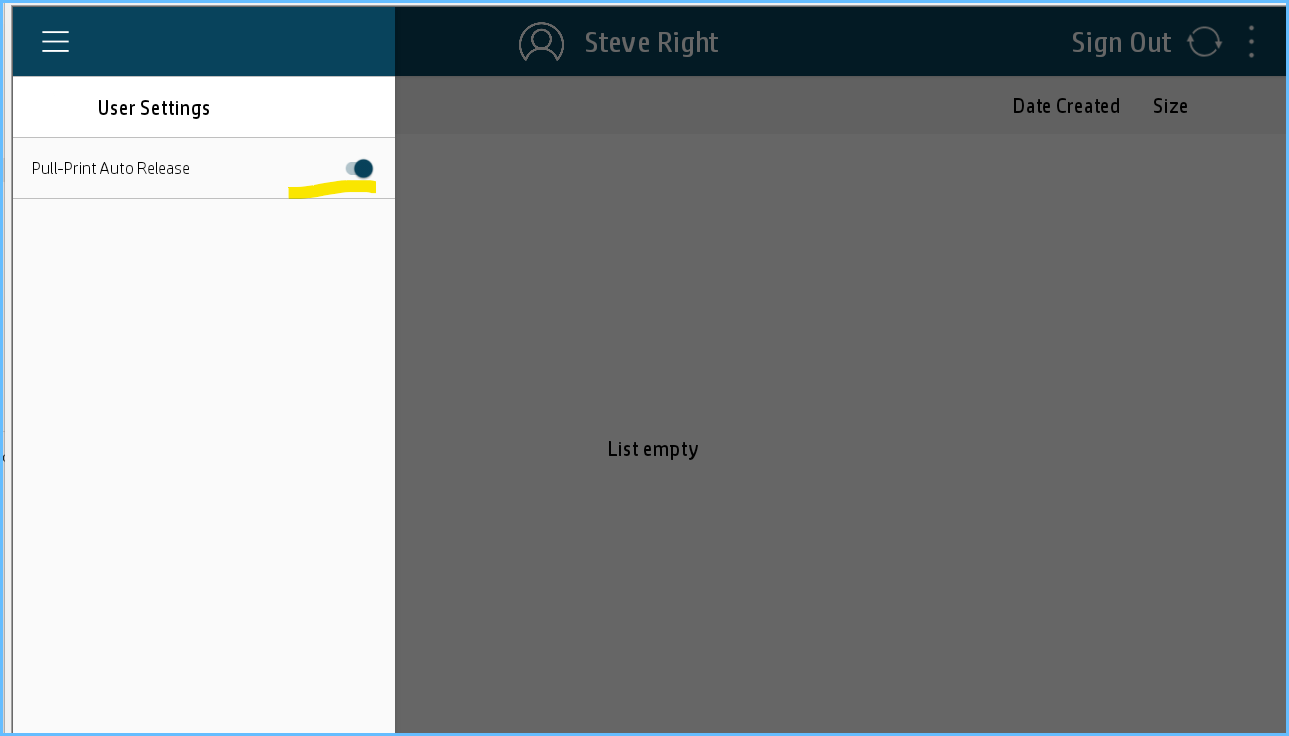
- Pull Print not automatically releasing my Print jobs, I have to manually select Release My Jobs, The current users default Pull-Print Auto Release user settings is Disabled, however it should have been set for Enabled as per our User Guide.
Workaround
- Manually enable Pull Print Auto Release from the Universal Print Console . Hamburger Menu > User Settings ? Pull-Print Auto Release
Resolution
Resolved in Release V4,2
Some Pull jobs may be aborted
- Some _Pull jobs may be aborted - Not all jobs are printed if you have several _Pull job request and the printer internal Capacity has been reached, for Example you may have 10 Large Pull Print jobs and we have indicated that all 10 jobs will be printed, however not all will be printed due to memory, This also Affects any Direct Jobs if the printers Jobs cache is full during a Direct Print Job.
Workaround
- Use _Secure Print, and select your jobs via Print Preview, and for Direct, Retry printing once the printer is clear of any Pull Print jobs.
Resolution
Resolved in Release V4,2
Updating Universal Print Configuration via HP Command Centre will Re-Register printers in Azure
- When submitting Universal Print Configurations via HP Command Centre, currently it will re-Register existing selected services like _Secure, _Pull and _Direct, and therefore you will need to Remove and use Azure swap function on any of the shares and or Member Printers.
Workaround
- Avoid Pushing a Configuration via HP Command Centre if possible, else if you only need to adjust one printer, then use the Printers Admin console to make the changes.
Resolution
Resolved in Release V4,2
Limitations
- Unable to display file size information for _Secure registered printers.
- Unable to display Date-Time & File size information for Print Anywhere Member Registered Printers
- Print jobs are automatically deleted if you Preview and you do not Print.
If you preview a job that was sent to a Print Anywhere_Secure queue, and choose not to proceed with printing, then the job will be automatically deleted once you exit the preview screen. This behavior is a limitation of the IPP/Mopria standards and not a defect in the application.
Resolution
Resolved in Release V4.2
- No support for Finisher Options Fold-C, Fold-V, Fold Z, Fold Letter, Fold Half etc..
- Staples must be manually selected at the console when using _Secure , Mailflow, SharePoint, OneDrive and Teams applications.
Workaround
- If you find you have special needs for your Finishing options then please directly connect to your printer over your LAN and use the latest HP Supported Windows Printer drivers.
Resolution
Under Investigation
- When selecting Multiple jobs to print using the Universal Print Console (Secure), and each job has been printed under different Output side options, your print jobs will use the default settings for all selected jobs, for example if one job was printed using Duplex, and the next job was setup to print Simplex, and the Default Console Output Sides is set for Simplex, then all jobs will be printed as Simplex.
Workaround
- Print each job individually and ensure you review the output option settings and adjust accordingly, this incudes if you want staples too.
Resolution
Resolved in Release V4,2
- When setting Black & White Printing/ Monochrome as your default option for Print Anywhere, it will print in colour!
Workaround
Choose Greyscale as the default for All LaserJet Printers and Choose B/W - Monochrome for Inkjet based Printers
This is Standard Behaviour and is not classified as an Issue by Microsoft.
HP Authentication Manager V4.1
ICONS Labels changes to English
- During a Sign-in the default Built-in Console Applications like Copy, Print etc.. ICONS Labels changes to English when Device Language is set for another Country.
Workaround
- Nil
Resolution
Resolved in Release V4,2
Please note we only support English for the HP Authentication Suite of Apps
QRCode Sign-in Fails
- You may find under certain conditions when the QRcode Launches on your Printers Console and you Scan the QRCode using HP Secure Authentication Mobile app, you may receive a success message yet you are not signed in.
Workaround
- Use the console Rest Icon/Button and Try Again and or Reboot Printer
Resolution
Resolved in Release V4,2
Graph Errors when trying to Launch HP Authentication Manager
- The cause of this issue is related to the Printer Firmware and the loss of DNS, the inability to resolve access to https://login.microsoft.com and all other subsequent URL endpoints. This is a Complete failure of the Printers ability to handle DNS queries and affects the HP Authentication suite of apps . ERR NAME NOT RESOLVED
Workaround
- Please Reboot Printer
Resolution
- Will be Resolved in Future Firmware Release
URL Error Message Links would allow users to Browse the Internet
- Some of our URL Error Message Links would allow users to Browse the Internet to other sites from the console, like Youtube or Facebook etc..
Resolution
Resolved in Release V4,2
Authentication Suite V3 Archive
HP Universal Print for Authentication Suite V3
Issue
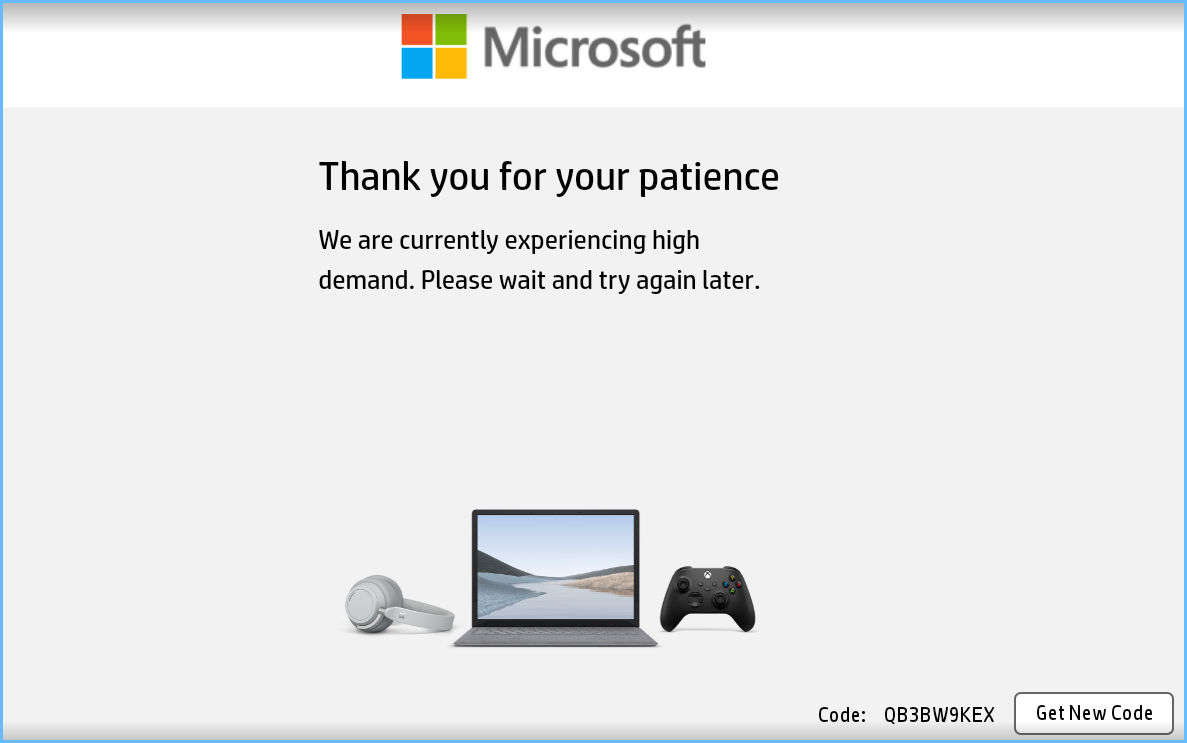
Unable to register Printers Manually via the Universal Print Console app - Message Thank you for your patience, we are currently experiencing high demand. Please wait and try again later.
Work Around
Register Printers using the HP Command centre method, Click here for Install Guide
Resolution
Resolved in V4 October 2025 release
HP Secure Authentication Mobile app V1.5.0 on IOS
Issue
The first time you launch the Application on a iPhone using BLE to sign in using a RFIDeas BLE Reader, you may receive a BC01 Error message indicating to get closer and try again.
Work Around
Try a Second attempt, do not close the app, just tap the BLE Button.
Resolution
Resolved in the September 2025 release
HP Authentication Manager V3
We do not support 4.3" Screen sizes for HP Authentication Manager V3
However, if you wish to use our Universal Print application for Direct Print, Direct Print with Pin Code Release, Pull Print/Follow Me Print or using the Microsoft Universal Print Printed QRCode Secure release, then this is possible.
Our Next Release V4, better supports 4.3" Workpath enabled printers.
SharePoint & OneDrive V3
Fail to Print TIFF and MTIFF Images from OneDrive and or Sharepoint
Resolution
- Resolved in Next Release V4.1 and above
Other Known Limitations
Colour Printing
Your Monitor may not be calibrated to support RGB or Pantone color matching. As a result, the colors displayed on your monitor may not accurately match the printed output, regardless of your printer's brand or model.
Work Around
Here is one of our articles explaining the challenges, and possible workarounds, Click Here, else once HP releases a PSA driver, it may support ICC Profiles which could assist in colour matching, however there is no expected date for a PSA Driver.
Bugs
Issue
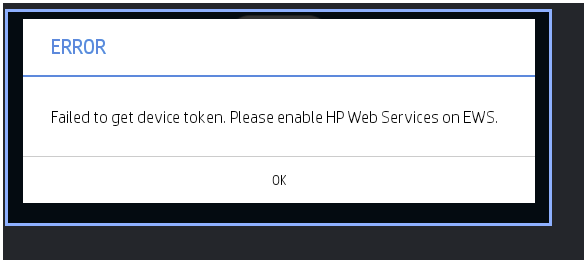
You may see these Error messages the first time the applications are installed when trying to launch, Failed to get device token, Please enable HP Web Services on EWS and Unable to retrieve data from HP cloud services.
Work Around
Close the messages, and try again, this should resolve the error messages on second try, and if it does not then please refer to the following article What ports do I need to have open for Workpath apps
Resolution
Still Under Investigation as of October 2025
FAQ
No print jobs
missing print jobs
missing pull print jobs
Print jobs aborted
Unable to retrieve data from HP cloud services Please contact device administrator
We do not see any shared folders in the OneDrive app
QRcode Missing
No QRcode
HP Authentication Manager hangs or locks up
Endless loop
Was this article helpful?
That’s Great!
Thank you for your feedback
Sorry! We couldn't be helpful
Thank you for your feedback
Feedback sent
We appreciate your effort and will try to fix the article