Please send us the Printers Application diagnostic Logs for HP Authentication Manager. How to produce log diagnostic reports
TABLE OF CONTENTS
- AI01 > AI06 Error Codes
- AI07 - Unable to Detect a Supported Card Reader
- AI08 - No Card Reader and or SignalR Services Detected Please report this to your IT Department
- AI09 - QRcode is missing, Please tap your Card / Badge to Sign-in and report this to your IT Department.
- Other Errors you may encounter
AI01 > AI06 Error Codes
AI01 - Please check network connections and base URL values.
AI02 - Invalid credentials or server error.
AI03 - Please check time and date settings.
AI04 - Server error - failed to obtain token.
AI05 - Server error - failed to obtain config.
AI06 - Graph Org Check failed: HTTP 401
Error Codes between AI01 - AI06
Resolution
- Your HP Authentication Manager Configuration has incorrect or missing Values and you need to carefully review and re-apply via HP Command Centre, and its always good practice to Reboot the Printer after a change of configuration.
- Your Network infrastructure and or Conditional Access Policy may be blocking some of the required Microsoft Endpoints like Microsoft Graph, SignalR etc... including blocks on Port 443, We advise you check Azure Sign-in and firewall logs etc.. to isolate the Block and review the following articles. What ports do I need to have open for Workpath apps and Conditional Access General Support Information.pdf
- If you have updated or modified any of your Azure App Registration secret, please review the following article for important information. How do I update my App Registration Secrets
- You may not have completed all the required Azure Onboarding Processes for HP Authentication Suite especially around the area of Custom Security Attributes.
- Please try to Power off the printer then Pull the Power Cord out, wait 10 Seconds and plug it back in and Power up.
- Some of these issues may be resolved by upgrading the HP Authentication Manager Suite to V4.2, including your printers Firmware to 5.10.0.7 or above , please review the following article Known issues - Limitation's
If you continue to see issues then please send Logs to help@hpauthsuite.com, How to produce diagnostic Logs?
AI07 - Unable to Detect a Supported Card Reader
- Your Printer has been setup to support Card Readers ONLY to perform Sign-ins.
- You have chosen not to support QRcode Sign-in using our HP Secure Authentication Mobile App.
Resolution
- Resolve the Card Reader issue, Replace/Add a certified reader.
- Review with IT the feasibility of deploying a SignalR service to support a fallback authentication method during reader failures, leveraging the HP Secure Authentication Mobile App for QR code sign-in
AI08 - No Card Reader and or SignalR Services Detected Please report this to your IT Department
- Your printer is configured to generate the QR code using the SignalR service, but it appears to be offline or unavailable at this time.
- You may have chosen not to supply a Card / Badge Reader and or the Card / Badge Reader is Faulty.
Resolution
- Replace the reader if you have chosen to install a Card Reader.
- Check to ensure your Azure SignalR Service is on-line and no Firewall rules are blocking access.
- Review HP Authentication Manager configurations SignalR endpoint value to ensure it is accurate and matches your SignalR Service.
- Check your SignalR Service to ensue the Secrets have not Expired - When Secrets Expires!
AI09 - QRcode is missing, Please tap your Card / Badge to Sign-in and report this to your IT Department.
- You have chosen to support a Card / Badge Reader including Sign-in using QRcode, however the QRcode has not been displayed.
Resolution
- Check to ensure your Azure SignalR Service is on-line and no Firewall rules are blocking access.
- Review the HP Authentication Manager configuration and ensure the SignalR endpoint URL is correct and matches your SignalR service endpoint.
- Check you SignalR Service to ensue Secrets have not Expired. - When Secrets Expires!
Other Errors you may encounter
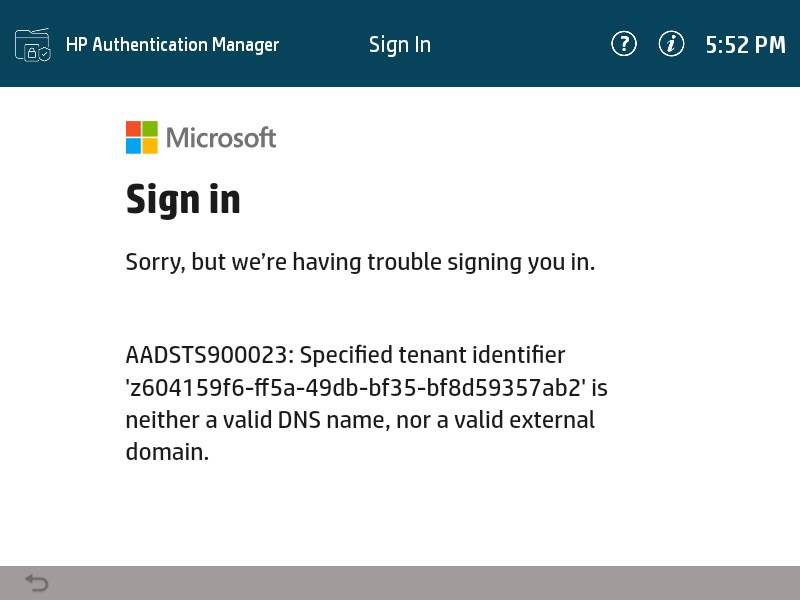
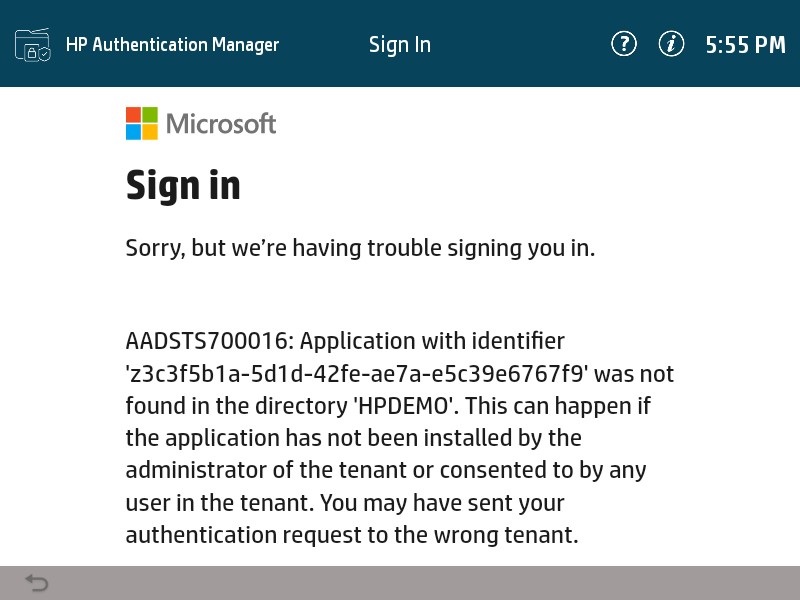
These are some of the Error screen shots you may encounter when a Microsoft Login is attempted on the Printers Console.
Microsoft Error AADSTS900023 Specified tenant identifier XXXXX is neither a valid DNS name etc...
Resolution
- Please check Printer License settings AuthURL using HP Command Centre, it's either Missing or Invalid.
Microsoft Error AADSTS700016 Application with Identifier XXXXX was no Found etc..
Resolution
- This is caused by bad or missing ClientID Value, check the Printers HP Authentication Manager Configuration settings using HP Command Centre.
Microsoft Error AADSTS500113
Resolution
- No Reply address is registered for the application when attempting to complete your Microsoft sign in, this error can be caused if your HP Authentication Manager App Registration is missing and or has a Malformed Redirect uri, it should be com.hp.hpauthenticationmanager://oauth2redirect

HP Server errors and or HP Token errors
Resolution
- We suggest to retry the application, as this may occur the very first time HP Authentication and or any of the HP Authentication suite of apps are loaded.
- Reboot Printer and Try again
- If the reties fail, then we suggest you review the following article, as it could be related to Firewall Rules.
What ports do I need to have open for Workpath apps
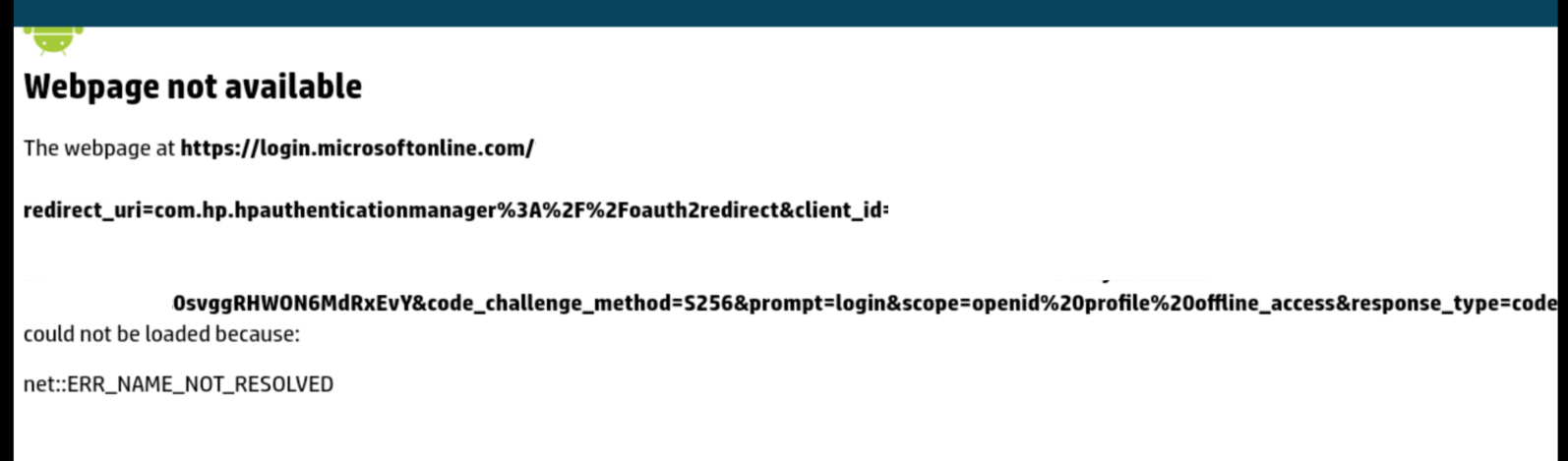
Web Page Not Available
The cause of this issue is related to the Printer Firmware and the loss of DNS, the inability to resolve access to https://login.microsoft.com and all other subsequent URL endpoints. This is a Complete failure of the Printers ability to handle DNS queries and affects the HP Authentication suite of apps . ERR NAME NOT RESOLVED
Resolution
- Please Reboot Printer
- Will be Resolved in Future Firmware Release
Keywords
Invalid client secret provided.
FAQ
AL01 - Please check network connections and base URL values.
AL02 - Invalid credentials or server error.
AL03 - Please check time and date settings.
AL04 - Server error - failed to obtain token.
AL05 - Server error - failed to obtain config.
AL06 - Graph Org Check failed: HTTP 401
A01 - Please check network connections and base URL values.
A02 - Invalid credentials or server error.
A03 - Please check time and date settings.
A04 - Server error - failed to obtain token.
A05 - Server error - failed to obtain config.
A06
AL07
AL08
AL09
A101
A102
A103
A104
A105
A106
A107
A108
A109
Was this article helpful?
That’s Great!
Thank you for your feedback
Sorry! We couldn't be helpful
Thank you for your feedback
Feedback sent
We appreciate your effort and will try to fix the article